deskshare logo
Products
Download
Support
Support Forum

Ask questions and find solutions to common problems.


Technical Support

Your complete reference to product technical support.


Lost License Key

Retrieve your purchase history using our automated system.

Resources
Articles

Read expert insights on how to get the most out of our software.


Video Tutorials and Manuals

Learn new features and functions with our easy to follow videos and guides.

Contact Us
Contact Us

Your direct line to chat with us.


About Deskshare

Discover our story and values

| My Account -->
    Deskshare Support Forums
    • Recent
    • Popular
    • Login
    1. Home
    2. DeskShare_-_Support
    D
    Offline
    • Profile
    • Following 0
    • Followers 0
    • Topics 0
    • Posts 1,425
    • Groups 0

    DeskShare - Support

    @DeskShare_-_Support

    0
    Reputation
    2
    Profile views
    1.4k
    Posts
    0
    Followers
    0
    Following
    Joined
    Last Online

    DeskShare_-_Support Unfollow Follow

    Latest posts made by DeskShare_-_Support

    • RE: Make sure Android USB debugging is enabled

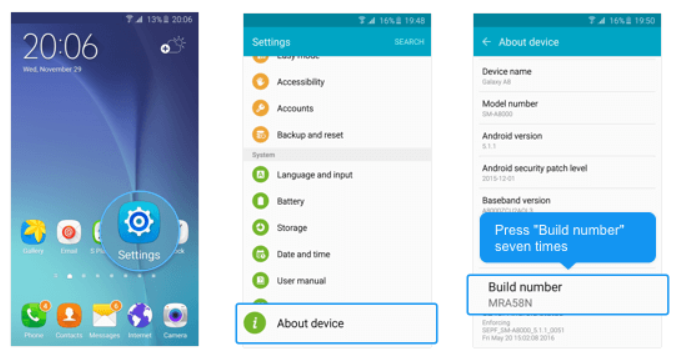
      On Android 4.1 and lower, the Developer options screen is available by default, on Android 4.2 and higher, do the following:

      1. Open the Settings app
      2. Scroll to the bottom and select About phone.
      3. Scroll to the bottom and tap Build number 7 times

      [img=https://www.deskshare.com/forums/images/posts/MSRPpost3774-1.png]USB Debugging[/img]

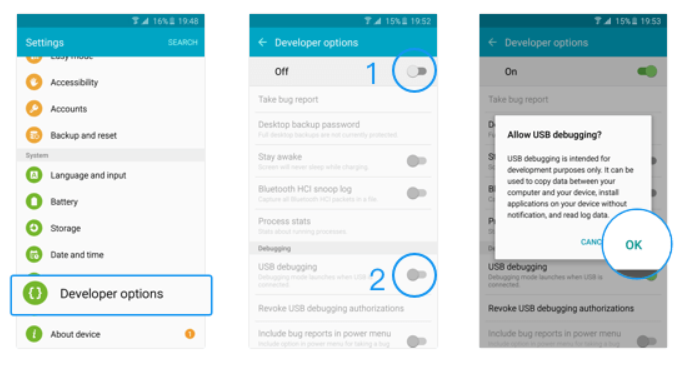
      1. Return to the previous screen to find Developer options, turn it ON
      2. Scroll down and enable USB debugging.

      [img=https://www.deskshare.com/forums/images/posts/MSRPpost3744-2.png]USB Debugging[/img]

      If USB debugging is already enabled and device is not connecting and not listed then:

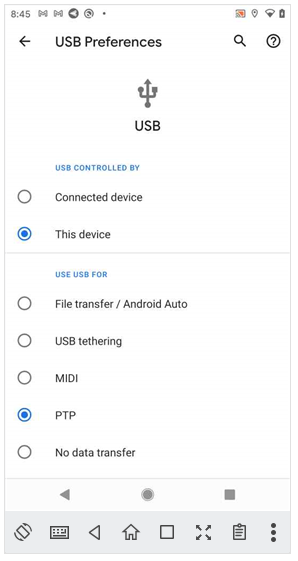
      1. Open the Settings app
      2. Search for 'USB Preferences' option
      3. Set 'USE USB FOR' to 'PTP' as shown in this screenshot:

      [img=https://www.deskshare.com/forums/images/posts/MSRPpost3744-3.png]USB Debugging[/img]
      posted in My Screen Recorder
      D
      DeskShare_-_Support
    • RE: How to initially install and setup Mobile to PC File Transfer

      Hello Jim,

      First,install Mobile to PC File Transfer from the Google Play store.

      Next, install FTP Manager Lite on your PC.

      Finally, view this instructional video:
      Transfer files from your Android to PC with PC to Mobile Transfer

      posted in Mobile to PC File Transfer
      D
      DeskShare_-_Support
    • RE: How do I translate text from images?

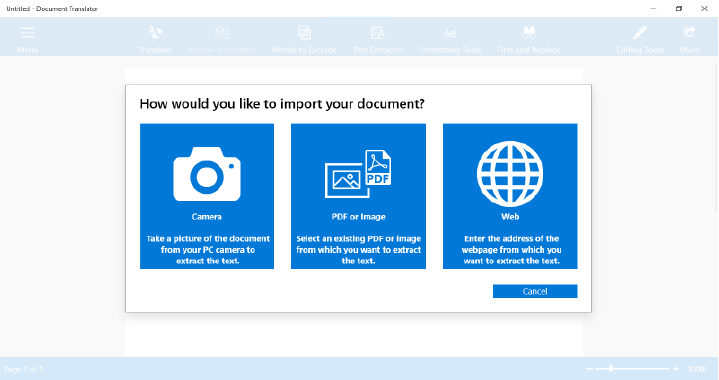
      Document Translator allows you to extract text from images and translate them.

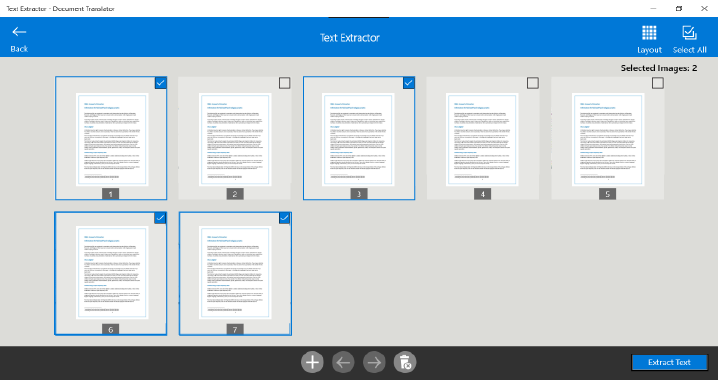
      To get the text from images, click the ‘Text Extractor’ icon on the toolbar. You will see a screen with options to extract text from PDF, image or Web. If you have images of documents in your PC then select the option to extract text from the image.

      [img=https://www.deskshare.com/forums/images/posts/DTPost3745-1.png]Extract Text from Image and translate[/img]

      Select the scanned images and click the ‘Extract Text’ button. You will get the text from all images into an editable format.

      [img=https://www.deskshare.com/forums/images/posts/DTPost3745-2.png]Translate text in Image[/img]

      Next, click the **Translate **icon and select the language for translation to ‘English’. Then click the ‘Translate’ button. Once the translation process completes, you will see the documents in English language. This way you can translate all your German documents to English.

      posted in Document Translator
      D
      DeskShare_-_Support
    • RE: Transfer files between your mobile device and PC without an internet connection or USB cables

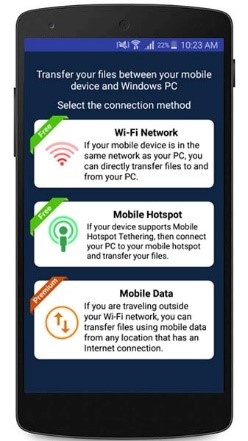
      Mobile to PC File Transfer allows you to transfer files using a ‘Mobile Hotspot’ when you don’t have a Wi-Fi network. Mobile Hotspot does not require an internet connection. It displays as a Wi-Fi connection on your PC.

      First, open the Mobile to PC File Transfer application and select ‘Mobile Hotspot’ connection method.

      [img=https://www.deskshare.com/forums/images/posts/PCTMpost3739.jpg]Mobile to PC File Transfer[/img]

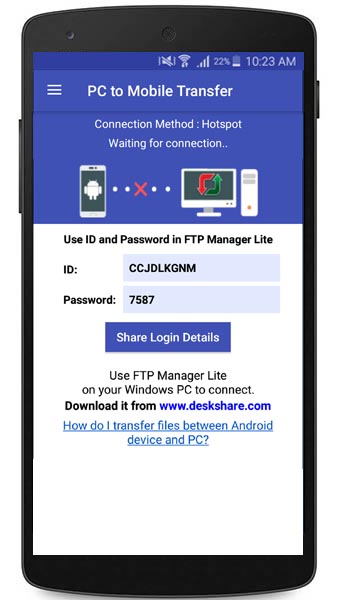
      Even if you don’t have a Wi-Fi network, you can still turn on ‘Mobile Hotspot’ from your device settings. Next, note down the URL and password to connect.

      [img=https://www.deskshare.com/forums/images/posts/PCTMpost3739-1.jpg]Mobile to PC URL[/img]

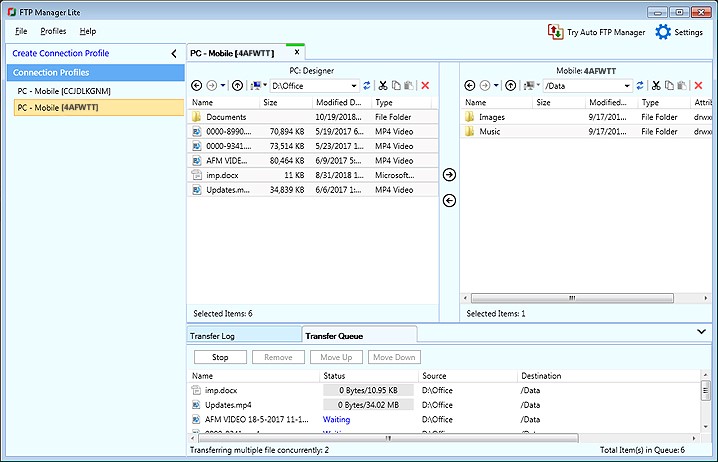
      On your PC, turn on the Wi-Fi. You should see your device's mobile hotspot name in the Wi-Fi network list. Select the hotspot created by your device and click the Connect button.

      Next, open FTP Manager Lite on your Windows PC and create a connection profile. To learn how to create a connection profile, watch the video tutorial. Once the connection is created, you can easily transfer files between your PC and mobile device without an internet connection or USB cable.

      [img=https://www.deskshare.com/forums/images/posts/PCTMpost3739-2.jpg]FTP Manager Lite Mobile Connection[/img]

      posted in Mobile to PC File Transfer
      D
      DeskShare_-_Support
    • RE: Accessing cameras from Security Monitor Pro directly from my Android mobile device

      You can access cameras added in Security Monitor Pro remotely from anywhere using Remote Access. To view the cameras directly on your mobile device, you have to use Security Monitor Pro with an Android app - IP Camera Monitor.

      First, you can start by installing an Android mobile app – IP Camera Monitor on your device from the Google Play Store.

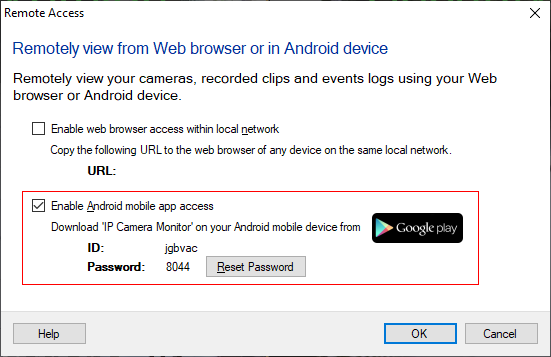
      To configure settings for remote access, open Security Monitor Pro and click the ‘Remote Access’ icon from the toolbar. Then select an option to ‘Enable Android mobile app access’. Note the ID and password shown on the remote access dialog and click OK to save the settings.

      Next, open IP Camera Monitor, click Add Camera and select ‘Connect to Security Monitor Pro’. Enter the ID and password from remote access dialog in the login screen and click Connect. You will now see all the connected cameras from Security Monitor Pro on your Android mobile device.

      You can remotely control actions such as monitoring, video recording, and capturing a photo. Access recorded media files and event logs directly from your device.

      posted in Security Monitor Pro
      D
      DeskShare_-_Support
    • RE: Transferring files from my PC into a compressed zip folder

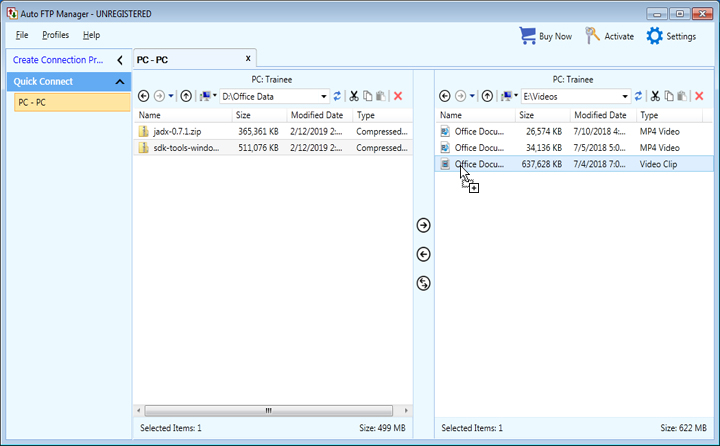
      Auto FTP Manager allows you to transfer local files directly into a compressed zip folder. You can easily drag and drop files from your PC to the zip folder.

      Auto FTP Manager lists compressed zip folders in the file manager. You can drag files from your source folder and drop it directly onto a zip folder. Once the file is transferred, double click on the zip folder. You will see that the file is successfully transferred.

      Note: To transfer files to the zip folder, the destination folder should be present locally on your PC.

      posted in Auto FTP Manager
      D
      DeskShare_-_Support
    • RE: Keep broadcasting running without interruptions

      Screen Cast application is designed to work well without interruptions. If you face an issue, there are 2 main reasons why broadcasting may stop.

      1. Memory management issues
      2. Network speed

      If your device freezes, stops responding or is stuck on the screen, one of the steps below could fix the issue.

      1. Do not keep other applications running which are not required while you use Screen Cast. Devices have a limited amount of memory and it is distributed among the apps. If other applications are running and using more memory space, Screen Cast will not get enough memory space to work efficiently.

      2. Use a high-speed network for the continuous broadcast of your mobile screen. Sometimes your app might be responding slowly because of your slow internet speed. Connection speed is important when your app uses network related services.

      3. You can start broadcasting again, check the login details and refresh the browser.

      posted in Screen Cast
      D
      DeskShare_-_Support
    • RE: Transferring files between two mobile devices

      Auto FTP Manager makes it easy to transfer files between two mobile devices directly from your computer.

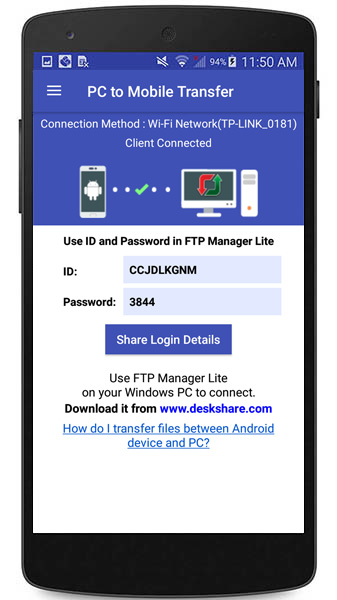
      On both mobile devices, install the PC to Mobile Transfer application. Open the app and note down the ID and password shown on each of the devices.

      [img=https://www.deskshare.com/forums/images/posts/AFMpost6227.jpg]PC to Mobile Transfer ID[/img]

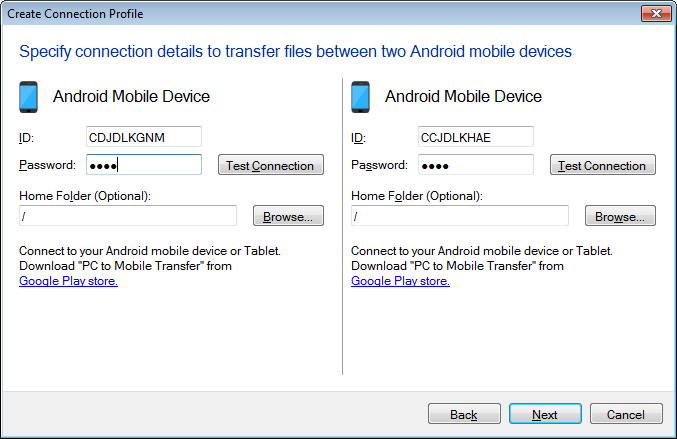
      Next, create a connection profile in Auto FTP Manager. Go to File >> New Connection profile and select the option ‘Android Mobile Device’ from both the dropdowns. You can select Quick Connect or Automated Profile. Next, enter the ID and password for both the devices and create the connection profile.

      [img=https://www.deskshare.com/forums/images/posts/AFMpost6227-1.jpg]PC to Mobile Transfer Connection[/img]

      Once the profiles are created, you can transfer files between the Android mobile devices directly from your computer.

      posted in Auto FTP Manager
      D
      DeskShare_-_Support
    • RE: Which connection type to select in Screen Cast?

      Using Screen Cast you can view your mobile screen on any device with a browser.

      If you have Wi-Fi turned on and you are in the same network as your PC then select the connection type as ‘Wi-Fi network’.

      If you don't have a Wi-Fi connection, select mobile hotspot and you can connect your PC to the mobile hotspot Screen Cast creates.

      If your mobile device and PC are far apart then you can use ‘Mobile Data’. This selection will use your mobile network. You can use the browser on your PC to connect to the URL displayed on your mobile screen.

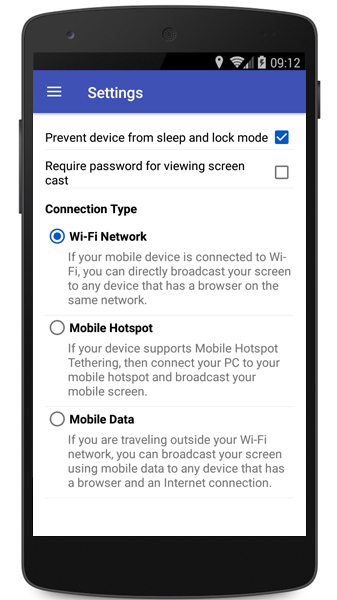
      To select the connection type, go to Settings in Screen Cast and choose the Connection Type as 'Wi-Fi Network', 'Mobile Hotspot' or ‘Mobile Data’.

      [img=https://www.deskshare.com/forums/images/posts/SCpost6224.jpg]Connection Settings in Screen Cast[/img]

      You can easily switch between connection types depending on the network of your mobile device and PC.

      posted in Screen Cast
      D
      DeskShare_-_Support
    • RE: Password protect my mobile camera to prevent strangers from viewing it

      IP Phone Camera allows you to set a password to prevent anyone from viewing your phone’s camera. Password protection is a premium feature.

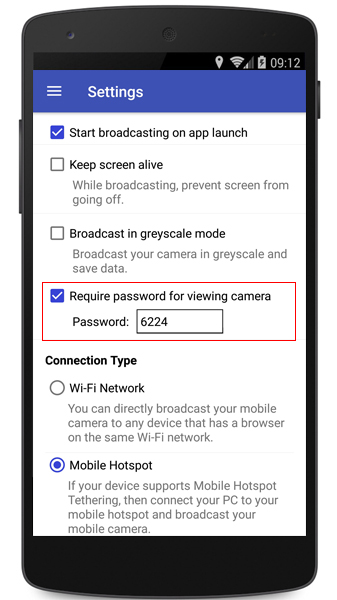
      To set a password, first purchase the premium version from Settings >> Upgrade. Once you have activated the premium version, open IP Phone Camera and go to Settings. Select the ‘Require password for viewing camera’ option and press back on the mobile screen.

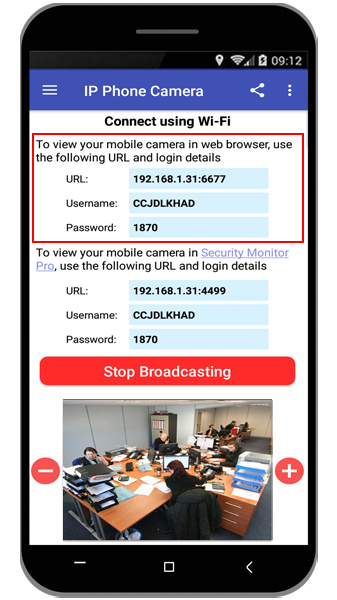
      Press ‘Start Broadcasting’ and the URL, Username and password will be displayed on your main screen.

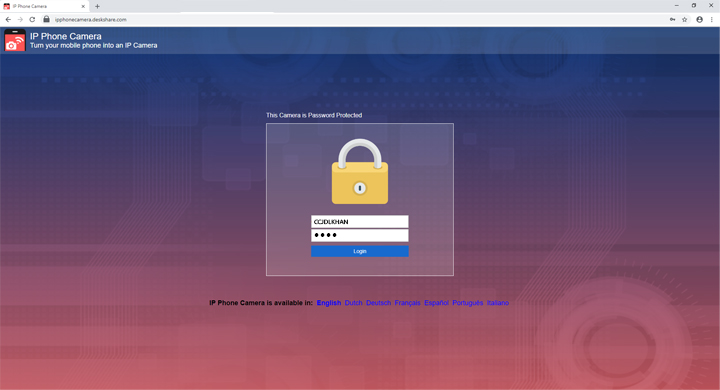
      Next, open your browser, enter the URL from the app. Enter the username and password to view your mobile camera. No one can view your camera without the username and password.

      Note: If you use the ‘Mobile Data’ connection type, you will always require the username and password to view your mobile camera.

      posted in IP Phone Camera
      D
      DeskShare_-_Support