
Highlight the mouse movements in a recording
-
I am using Screen Cast with My Screen Recorder Pro to create presentations of my mobile apps. I want to highlight the part which I am pointing to on my mobile screen in the recording. Is there any option to do this?
-
Screen Cast when used with My Screen Recorder Pro allows you to highlight mouse movements in the recording. This will make your screen recordings effective.
To change the appearance of the mouse cursor, go to Tools >> Settings >> Effects. Click the 'Mouse Effects' button and select Display mouse cursor while recording. Choose a shape to highlight the mouse position from the 'Mouse Highlight shape' dropdown list. You can select the size and color of the selected shape. You can also choose to highlight the left mouse click, the right mouse click or both. Click OK to save these settings.
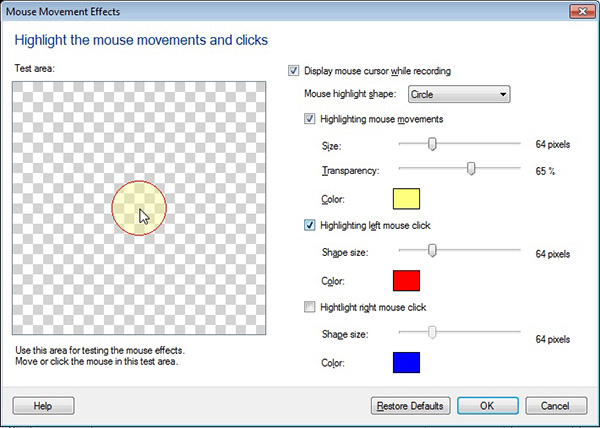
Then click the Record button on the toolbar and make sure you have configured the settings for recording the mobile screen on the Recording Options dialog. Click OK to start recording.
The mouse effect will appear when you play back your recording. This way you can make an effective presentation of your mobile application.