
Highlight an area on the mobile screen while recording
-
I want to create mobile application tutorial videos. So I am searching for a product which will allow me to record and highlight important areas of an app while recording. This will help to explain it in a better way. Can you tell me if your software will work for me?
-
You can use Screen Cast with the PC software: My Screen Recorder Pro to record your mobile app tutorials. My Screen Recorder Pro can help you highlight an important part of the screen during recording.
First, install My Screen Recorder Pro on your Windows PC.
Next, open Screen Cast, select the connection type and note down the ID and password to use in My Screen Recorder Pro. The password is optional, and can be changed from the Screen Cast application settings.
Next, open My Screen Recorder Pro and click on the Settings icon on the toolbar.
Select the Record mobile screen checkbox and configure the settings by providing the ID and password from Screen Cast.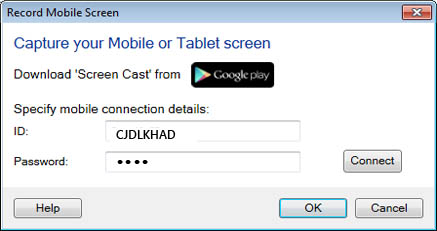
You will see the preview of your mobile screen by clicking the Connect button.
Now go to the 'Effects' tab and click on the Screen Draw button.To see the keyboard shortcuts, click on Test Screen Draw.
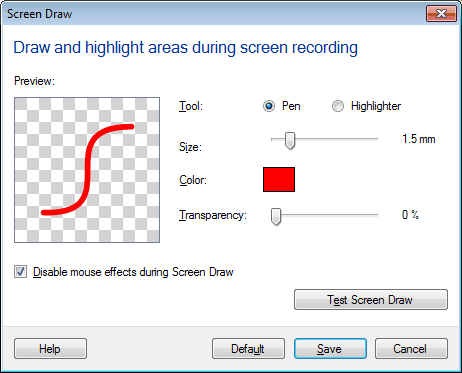
When you click on Test Screen Draw, you will see all the keyboard shortcuts you can use during recording.
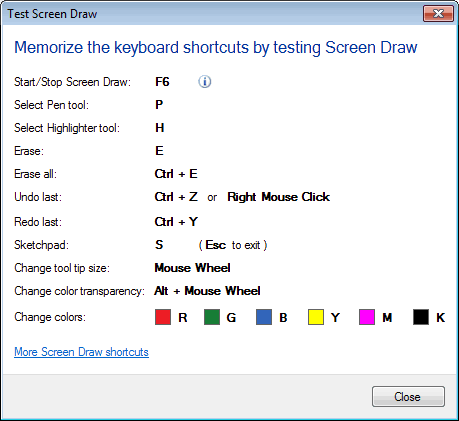
Learn more about Screen Draw effects .
Once you have configured the settings, click the Record button on the toolbar. Click Ok on the Recording Options dialog to start mobile screen recording.
Now, your mobile screen will get recorded along with your PC screen. Press F6 to start screen draw effects then use the respective keyboard shortcuts to make your presentation more effective.