
Capture photo every half hour from my phone with Security Monitor Pro
-
I am using IP Phone camera for monitoring my home. I want photos to be captured automatically every half hour. Is there any way to do this?
-
You can use IP Phone Camera with the PC software: Security Monitor Pro to capture photos every half hour.
On your Windows PC, download Security Monitor Pro.
To see how to configure actions with Security Monitor Pro, watch the video tutorial
Get started by adding your camera to Security Monitor Pro and then select the 'Take photo' action. To add the camera, open IP Phone Camera and click 'Start Broadcasting' to view the URL.
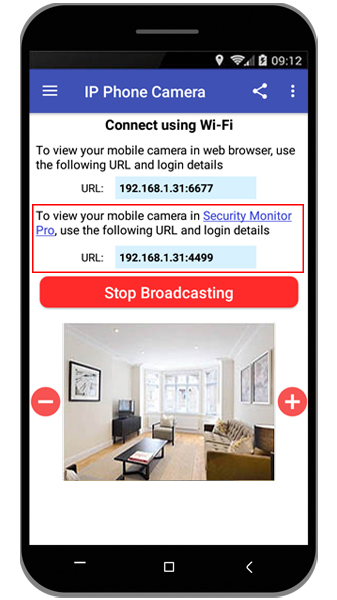
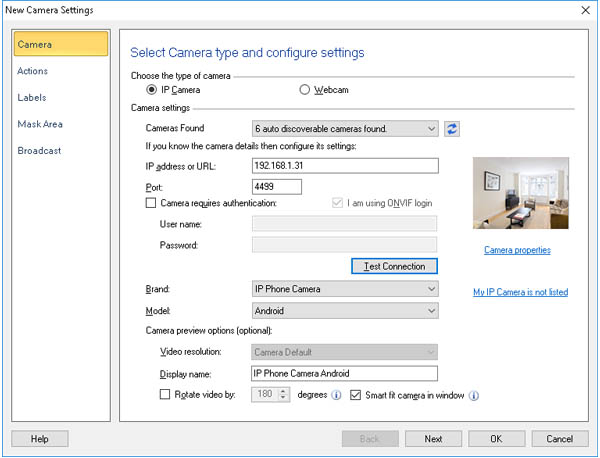
Next, open Security Monitor Pro, go to Camera >> Add Camera. Enter the URL shown on mobile application into the IP address field. Select the Brand as 'IP Phone Camera' and Model as 'Android' from the dropdown list.
Continue by clicking on Test Connection to see the preview of your IP Phone camera. If the test connection is successful, the camera video stream will appear in the preview window.
Go to the next page and set At regular interval of 30 minutes as the start action. Select the Take photo action to perform every 30 minutes. You can change the number of photos taken by clicking on the Configure button for 'take photo' action. Then navigate to the last page and click Ok to save the settings.
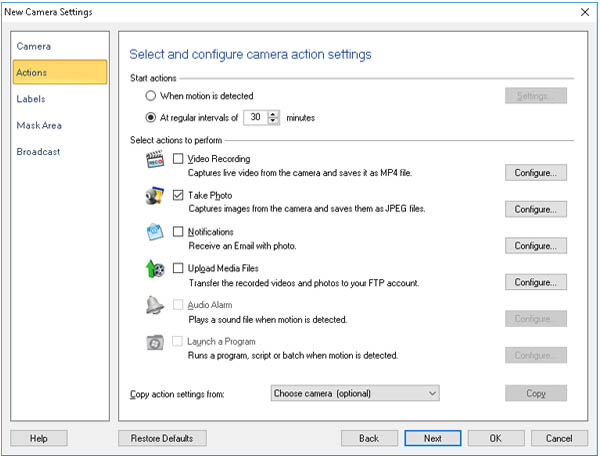
Photos will be taken from your camera in Security Monitor Pro every 30 minutes.
See the help file to learn more about how to configure the settings for the Take Photo action.