
Start recording the mobile camera video when motion is detected
-
I would like to monitor my home when I am away. I want to record video when motion is detected. Please explain how I can do this with IP Phone Camera.
-
You can record video on motion detection even when you are away from your home. IP Phone Camera works with video surveillance software such as - Security Monitor Pro and IP Camera Viewer.
On your Windows PC, download and install Security Monitor Pro .
To see how to configure actions with Security Monitor Pro, watch the video tutorial.
To record video from your device, add your camera to Security Monitor Pro then select the video recording action. For quick overview on how to start video recording, open IP Phone Camera and click Start to view the URL.
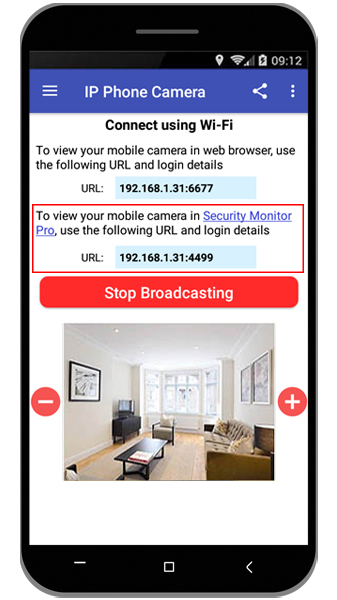
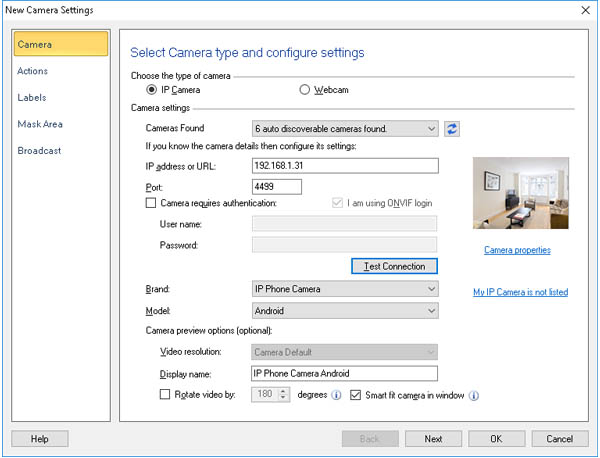
Next, open Security Monitor Pro and go to Camera >> Add Camera. Enter the URL shown on the mobile app in the IP address field. Select the Brand as IP Phone Camera and Model as Android from the dropdown list.
Now click on Test Connection to see the camera preview from your IP Phone Camera. If the test connection is successful, the camera video stream will appear in the preview window.
Navigate to the next page and select the option when motion is detected. Then select the Video recording action and finish the settings.
Whenever motion is detected, video recording from your camera will begin. The recording will continue for as long as motion occurs in front of the camera.