
View the status of all schedules
-
I have recently started using WebCam Monitor with my USB cameras. I have several schedules to perform actions on a weekly, and daily basis. I have one question – How do I differentiate between the expired, disabled, and active schedules?
-
Webcam Monitor uses color codes to differentiate between schedules based on their run status.
If you add new schedules, they are listed in black. The black color shows that the schedule is Active but not running currently. When you click on the Disable button on the Configure Schedule dialog, then the selected schedule will be changed to a Grey color. The color Orange indicates that the schedule has expired and will not run again. When the schedule is running, then it will be highlighted in Green.
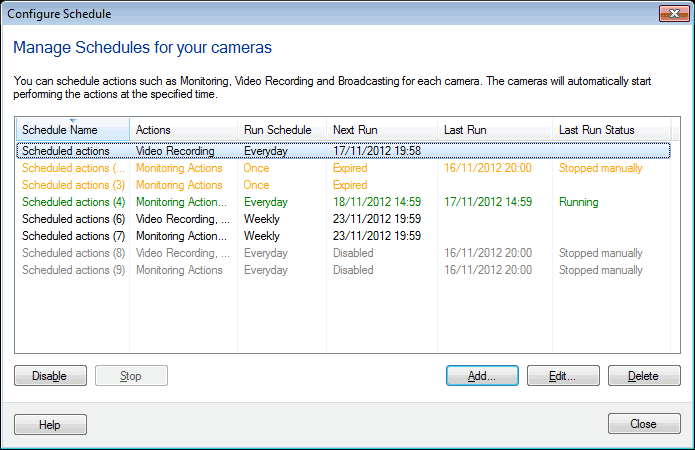
The colors make it easy to differentiate between waiting, running, disabled, and expired schedules.