
Skip the download of few folders on the root directory during a file transfer
-
I am testing the evaluation version of Auto FTP Manager. I want to automate the process of downloading files from a FTP server, but during the download ignore a few folders on the root directory location. In other words I want to download everything except a few folders. Please explain how I can accomplish this.
-
You can skip the transfer of specific folders from the root directory using Auto FTP Managers' File and Folder filters settings.
To do this, first create an automated transfer profile. On the action rules page, select the option to download files from the FTP server.
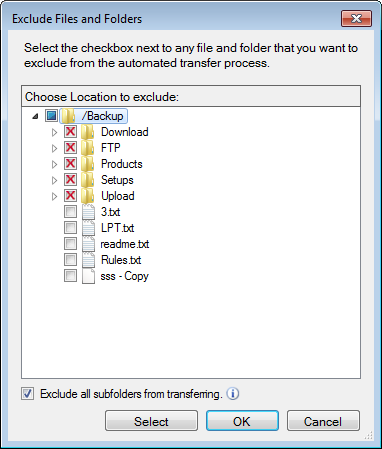
Next, add filters for your automated transfer profile. Go to the Files and Folder filters section and click on the Configure button. Tick the ‘Select folders to exclude’ checkbox and click the Exclude folders button under the FTP section. Choose the folders you want to exclude from the transfer. Click OK and save the changes.
To automate the transfer process, configure a schedule for this profile. Look for the Schedule Transfers section and click on Configure button, select the schedule type, and enter the start date and time. Click Ok to save the settings. Navigate to the next page and finish the settings.
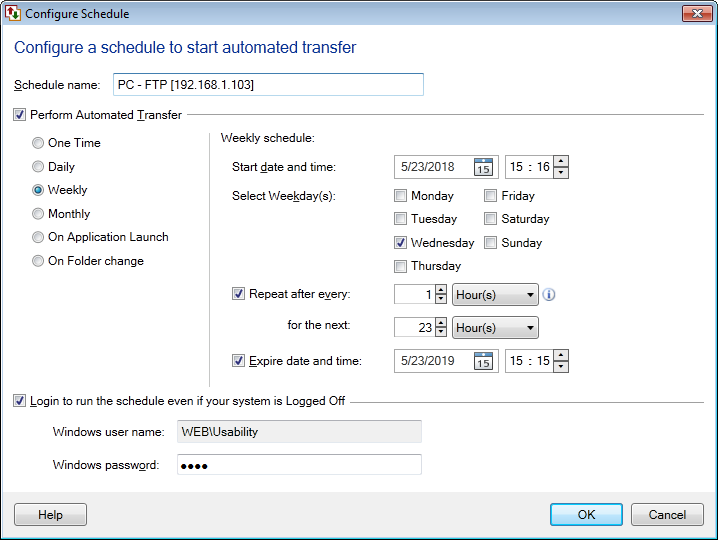
The schedule will run at a specified date and time. The files will be downloaded from all the folders except the excluded folders.