
Skipping the download of 0 KB (empty) files
-
I want to use Auto FTP Manager to auto download files from a FTP server. The FTP folder I am downloading from contains lots of 0 KB files. I don’t want to download those files. Is there a way to download without transferring the empty files?
-
Use the File and Folder Filters in Auto FTP Manager to skip certain types of files from transferring. This feature allows you to prevent the download of 0 KB files.
To configure the settings for File and Folder filters, you have to create an Automated transfer profile. Go to File >> New Connection Profile. Set the connection profile type to Automated Profile. On the next page, enter the details required to connect to the FTP server including FTP address, username and password. On the Action rules page, select the transfer action for downloading files.
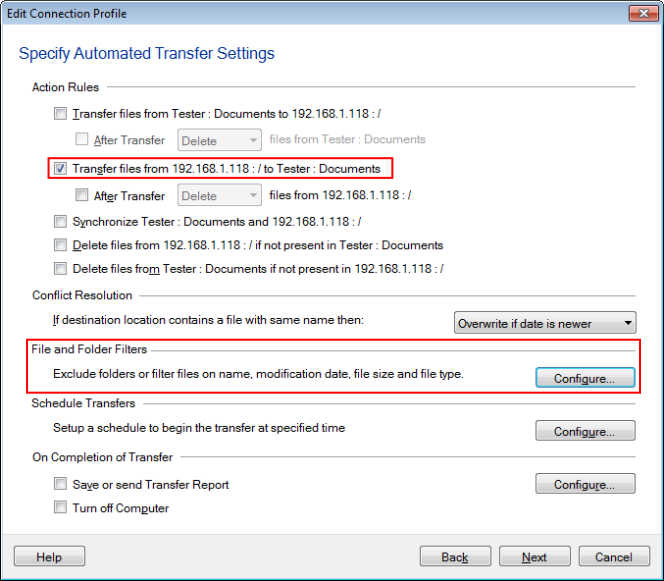
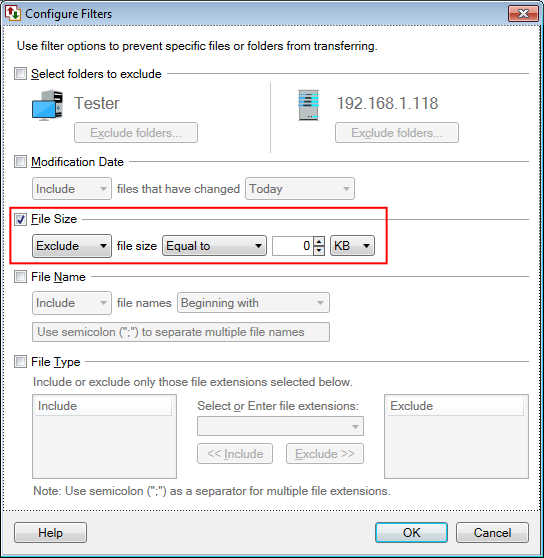
Next, look for the File and Folder filters section and click on the Configure button. Select the File Size filter and set it to Exclude file size equal to 0 KB. Click the OK button to save your settings.
To automate the transfer process, add a schedule. Go to the Schedule Transfers section and click on the Configure button. Choose the schedule type and start date-time as needed. Move to the next page, enter the profile name and click on Create button.
Now, whenever the schedule will run the files will be downloaded except the 0 KB files.