
Hiding the mask area from camera preview
-
I am evaluating the trial version of WebCam Monitor to keep an eye on my backyard. I noticed that the trees in the backyard cause motion so I have used a mask, but the white colored mask is displayed on the screen. Can I remove it from the on-screen camera preview?
-
You can hide the mask area from the camera preview in WebCam Monitor.
To hide the mask area, right click on the camera preview and select the **Edit Camera **option. On the Mask Area tab, uncheck the Show mask area on camera preview option.
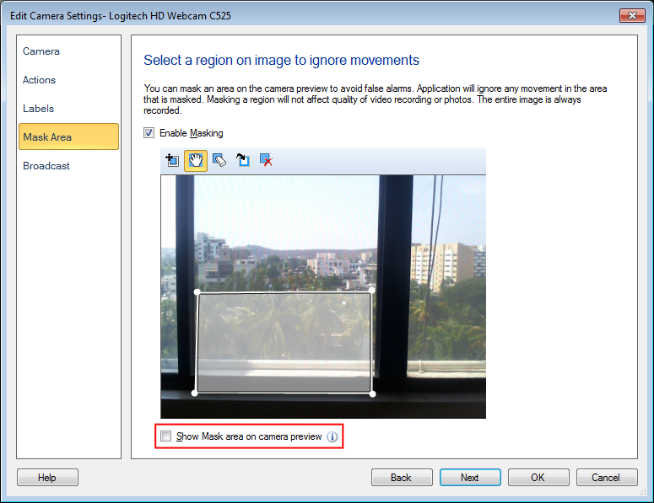
Note- Even if the mask area is hidden from the preview, it will still function as a mask and the motion will not be detected behind the masked region.