
Downloading files from a FTP server every morning
-
I am searching for an FTP client for auto downloading files from FTP server every morning. I have created the transfer profile but don’t know how to set up Auto FTP Manager to download files in the morning time. I appreciate any assistance.
-
Auto FTP Manager allows you to automatically transfer files at specified time using Schedule Transfers.
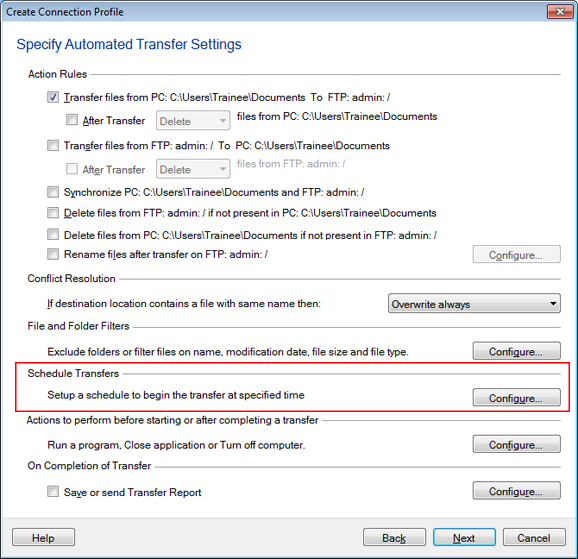
You have to create Automated profile for auto downloading files from FTP server and then create schedule for that profile.To create automated transfer profile, click File >> New Connection Profile. Select connection profile type as Automated Profile and enter FTP details. Navigate to next page and look for Actions Rule section. Select the option for downloading files. Now, look for Schedule Transfers section and click on Configure button.
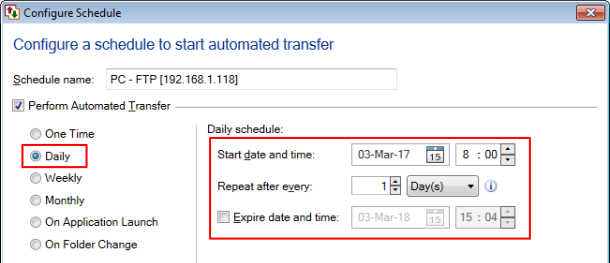
Select Perform Automated transfer option and schedule type as Daily. Enter Start date and time. You can select morning time here. The schedule will run every day at specified time and files will be transferred automatically.
Note: You can also run your schedule even if system is logged off. Just enable the option Login to run the schedule even if your system is Logged Off. When you enable this option, you need to specify Windows password.