Removing photos and videos from my PC after uploading
-
I am using WebCam Monitor in my dorm room in college, and I have also set it up at my parents vacation house.
I think someone in the dorm is entering my room when I am not there. I would like to have WebCam Monitor capture photos and video from my USB camera, upload the recordings to a FTP server and then completely remove them from my PC. I don't want anyone to be able to see what was recorded.
At my parents vacation home, there is renovation work being done and I am recording the progress while my parents are not there. I have a concern that the hard drive will fill up with the recordings. Is there a way to delete the old files? I really appreciate your help with getting both of these installations configured.
-
You have two options to remove previously recorded media files in WebCam Monitor.
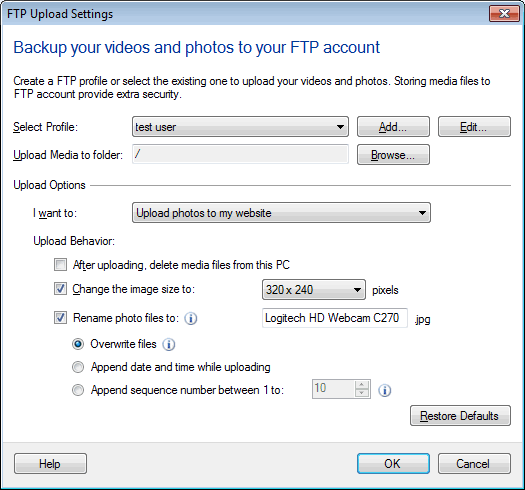
If you want to remove the files after uploading, select the checkbox ‘After uploading, delete files from this PC’ in the FTP upload settings and re-start monitoring. You will notice that the files will be deleted from local folder immediately after upload.
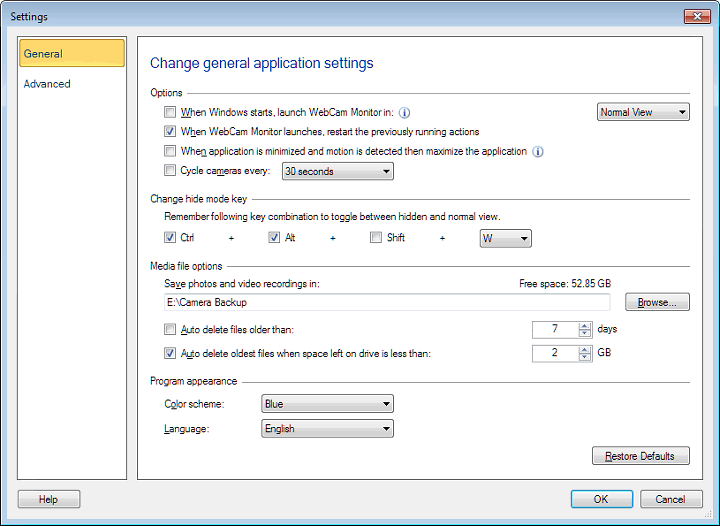
The other way you can remove recordings from the local folder is to delete them based on how old they are.
From the general settings select the ‘Auto delete files older than’ option and enter the number of days. This will remove the files which are older than specified number of days.