
Mirroring two folders automatically on a regular basis
-
I want to mirror the files on a server and my local PC folder. If I update my local PC, the file gets updated on the server, and vice-versa. Can Auto FTP Manager help me maintain a mirror of the two folders?
-
Auto FTP Manager allows you to maintain same files on two folder locations using the action rule for synchronization. The Scheduler will help you to synchronize these folders regularly.
To configure the settings, create an automated transfer profile. Go to File >> New Connection Profile. Choose the transfer type as PC to FTP server and profile type as Automated Profile. Navigate to the next page and enter the details required to connect to the FTP server. Click the Next button and look for the Action rules section. Select the Synchronize source and destination folder option. This option will make sure that files present in both the folders are exactly same.
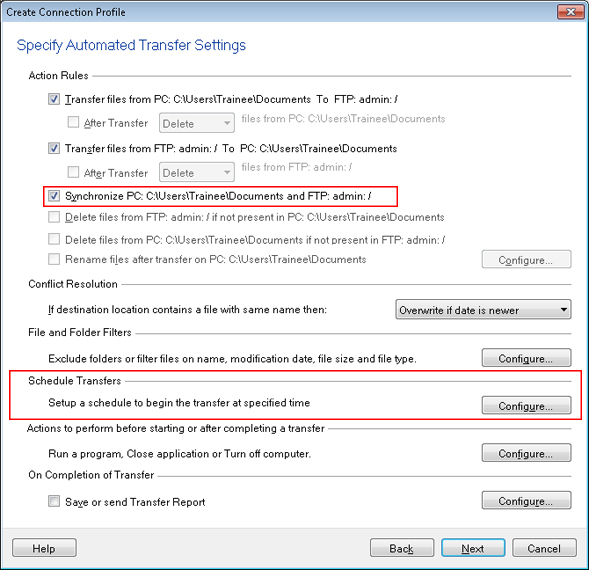
Under the Schedule Transfers section, click on the Configure button. Select the schedule type as Daily with a repeat interval of a few minutes or hours as required. Click Ok to save these settings.
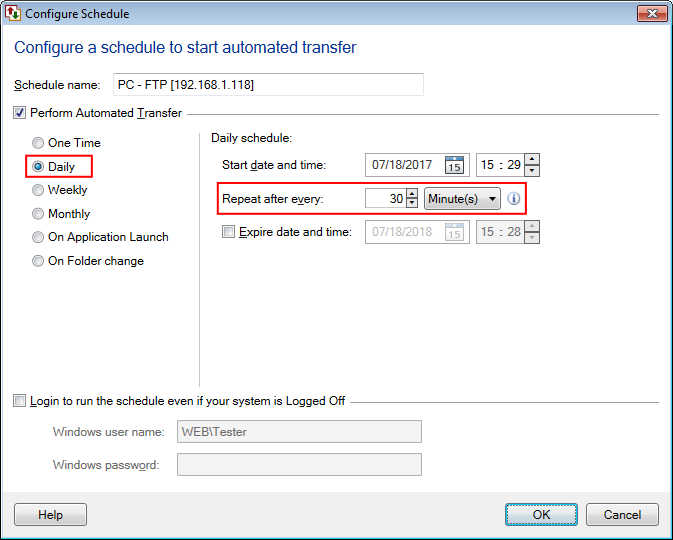
The schedule will run every N minutes / hours and the selected folders will be synchronized each time. If the files are not present in one folder then they are transferred from the other folder.