Transfer files between your mobile device and PC without an internet connection or USB cables
-
I want to transfer files from my phone to my PC but I do not have Wi-Fi or USB cables. Is there any way to do this?
-
Mobile to PC File Transfer allows you to transfer files using a ‘Mobile Hotspot’ when you don’t have a Wi-Fi network. Mobile Hotspot does not require an internet connection. It displays as a Wi-Fi connection on your PC.
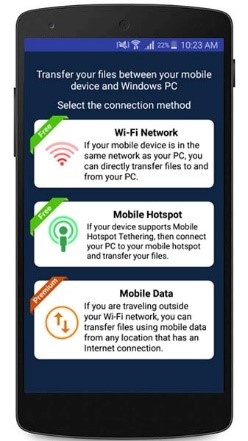
First, open the Mobile to PC File Transfer application and select ‘Mobile Hotspot’ connection method.
[img=https://www.deskshare.com/forums/images/posts/PCTMpost3739.jpg]Mobile to PC File Transfer[/img]
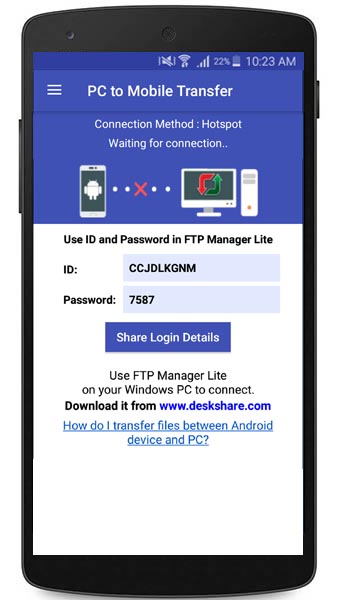
Even if you don’t have a Wi-Fi network, you can still turn on ‘Mobile Hotspot’ from your device settings. Next, note down the URL and password to connect.
[img=https://www.deskshare.com/forums/images/posts/PCTMpost3739-1.jpg]Mobile to PC URL[/img]
On your PC, turn on the Wi-Fi. You should see your device's mobile hotspot name in the Wi-Fi network list. Select the hotspot created by your device and click the Connect button.
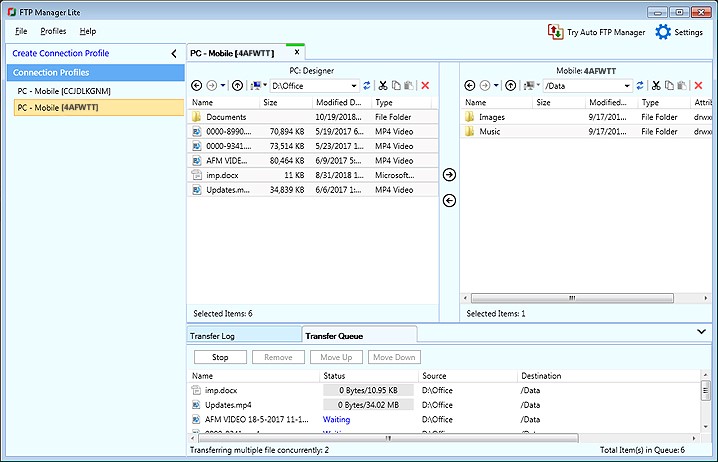
Next, open FTP Manager Lite on your Windows PC and create a connection profile. To learn how to create a connection profile, watch the video tutorial. Once the connection is created, you can easily transfer files between your PC and mobile device without an internet connection or USB cable.
[img=https://www.deskshare.com/forums/images/posts/PCTMpost3739-2.jpg]FTP Manager Lite Mobile Connection[/img]