
deskshare logo
Products
Download
Support
Support Forum

Ask questions and find solutions to common problems.


Technical Support

Your complete reference to product technical support.


Lost License Key

Retrieve your purchase history using our automated system.

Resources
Articles

Read expert insights on how to get the most out of our software.


Video Tutorials and Manuals

Learn new features and functions with our easy to follow videos and guides.

Contact Us
Contact Us

Your direct line to chat with us.


About Deskshare

Discover our story and values

| My Account -->
    Deskshare Support Forums
    • Recent
    • Popular
    • Login

    Efficiently using Security Monitor Pro with higher number of cameras

    Scheduled Pinned Locked Moved Security Monitor Pro
    2 Posts 2 Posters 2.8k Views
    Loading More Posts
    • Oldest to Newest
    • Newest to Oldest
    • Most Votes
    Reply
    • Reply as topic
    Log in to reply
    This topic has been deleted. Only users with topic management privileges can see it.
    • P Offline
      PN999
      last edited by

      I have 10 cameras added in Security Monitor Pro out of which 5 are high resolution cameras. I found that it takes a lot of system resources. Is there any way or settings to reduce system load and work efficiently with Security Monitor Pro?

      1 Reply Last reply Reply Quote 0
      • D Offline
        DeskShare_-_Support
        last edited by

        With Security Monitor Pro, you can simultaneously view and control multiple cameras. Adding high resolution cameras can take more system resources.

        If you have high end machine and still facing problem then you can try following steps to reduce the system load.

        1.Avoid adding image/text labels and rotation on camera preview.

        2.In Video resolution option, select ‘Camera Default’. For each high resolution camera, right click on the camera preview, select Edit Camera option and change the Video resolution in Camera Default.

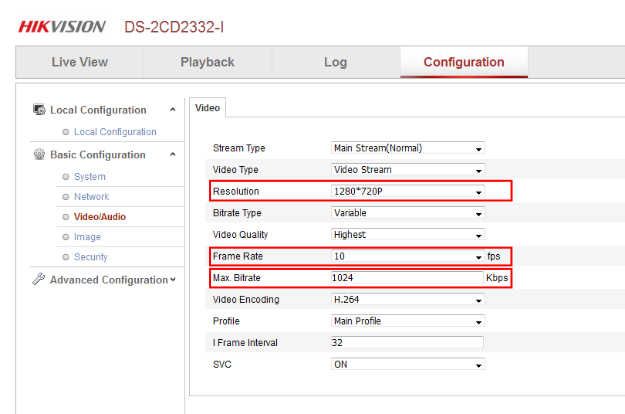
        Now, click on Camera Properties link present below the camera preview. This will open the camera web interface in default browser. Reduce the frame rate and video resolution on your camera’s web interface.

        3.For RTSP cameras, reduce the bitrate value to less than or equal to 1 mbps.
        1 Reply Last reply Reply Quote 0
        • 1 / 1
        • First post
          Last post