
How can I use different voices in one document?
-
I have to create audio files from text files, but I need to read different paragraphs in different voices. Can you tell me how to use different voices in a single document in Text Speaker?
-
You can insert voice change in Text Speaker to read your document with multiple voices.
Click on the ‘Open’ icon from the tool bar and choose the text file you want to convert to audio file. Select the paragraph or sentence and right click to open the context menu. Choose the ‘Insert Voice Change’ option and the voice you would like. Repeat this step for the remaining text. After adding the voice change, click on the ‘Speak’ icon from the tool bar to test the voices.
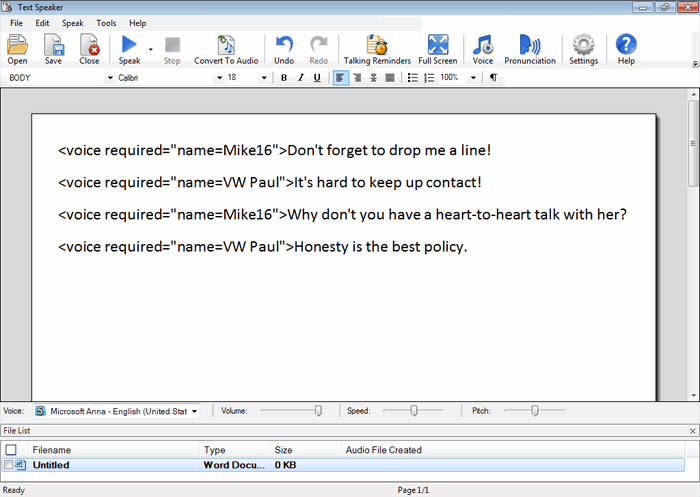
Save the changes and click on the ‘Convert To Audio’ option from the tool bar to convert the text file to an audio file.