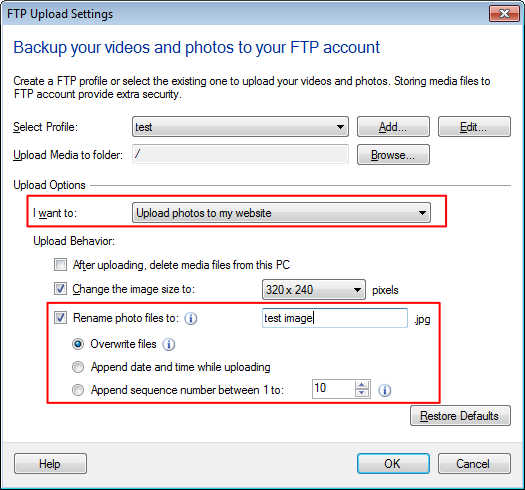
Uploading the latest photo from the IP camera
-
I would like to use Security Monitor Pro to upload a photo from my IP camera to my FTP server. I want only the latest captured photo to get uploaded and the older one should be removed. I need the new photo to be uploaded every 20 seconds. How to do this? Need some help!!!
-
Security Monitor Pro can automatically upload latest recorded video and photos to an FTP server by overwriting the older ones.
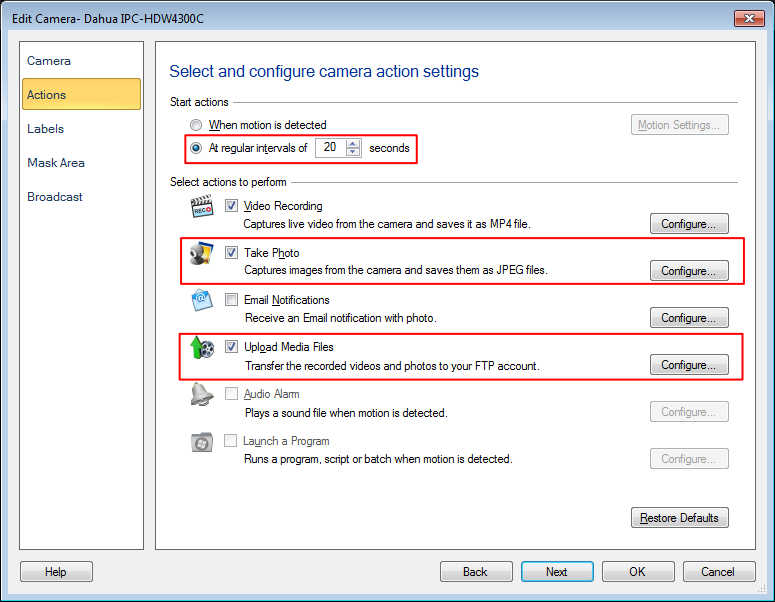
To replace the older files with the newer ones, select 'Manage camera' from tool bar, then choose the camera and click on 'Edit Camera'. On Actions tab, select the regular intervals option and set it for 20 seconds. Now select and configure Take photo action.
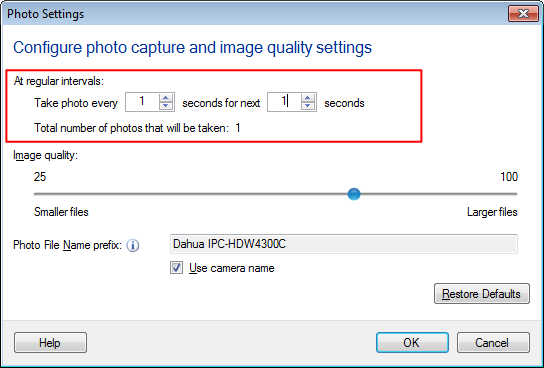
On Photo Settings dialog, set the regular interval to ‘Take photo after every 1 second for next 1 second’, this will capture 1 frame after every 1 second.
After that select and configure 'Upload Media files' action. On the 'FTP upload settings' dialog, choose the FTP account and select the upload option as 'Upload Photos to my site'. Select rename photo files option. By default the ‘Overwrite files’ option will be selected.
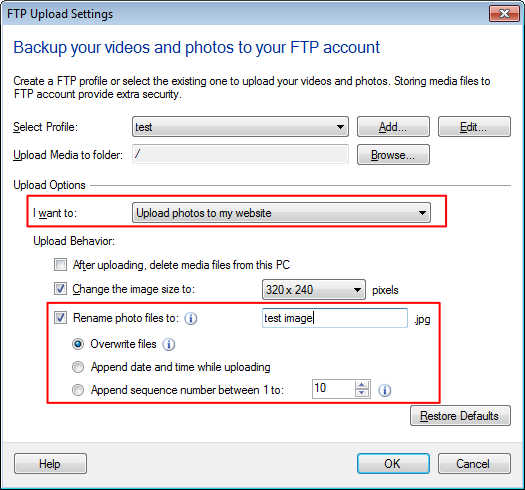
Right click on camera preview and start monitoring action. One photo will be taken after every 20 seconds and will be uploaded to the FTP server.