
Saving scheduled screen recordings to a network location
-
I am using My Screen Recorder Pro to create screen recordings on a schedule. I want the screen recordings to be stored on network folder instead of my local PC folder. How can I do this?
-
In My Screen Recorder Pro, you can use a folder shortcut to select a network location for saving your screen recordings.
When the application is launched, a folder with the name "My Recordings" is created in your "My Documents" folder. When you create a screen recording, by default it is saved in the "My Recordings" folder.
You can create a folder shortcut to a network folder. To create a new folder shortcut, click File >> Folder Shortcut >> Add.
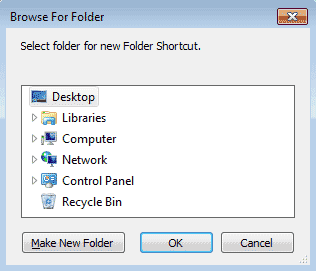
Select the network folder where you want to store the screen recordings. Once you select the folder, you will see a folder shortcut created in 'Folder Shortcuts' list.
Now, when creating a schedule, select your new folder shortcut from the 'File output folder:' drop down under the Recording options section.
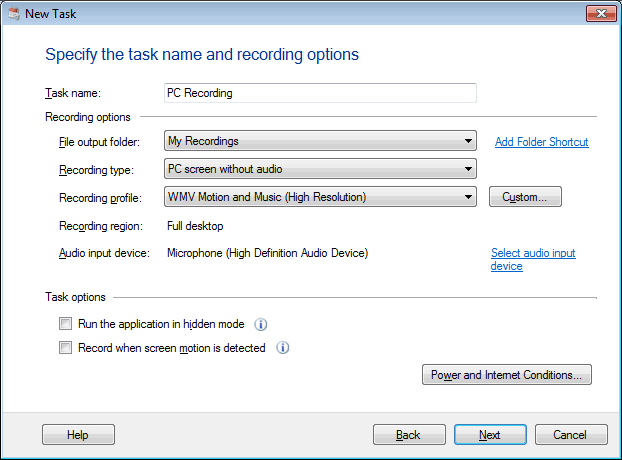
Screen recordings performed on a schedule will now be stored in your network location.