
Hiding the task bar while recording full screen
-
I want to use the Pro version for full screen recording. I don't want to have the task bar in the screen recordings. Need help!!!
-
While recording the screen, you can hide the task bar using My Screen Recorder Pro.
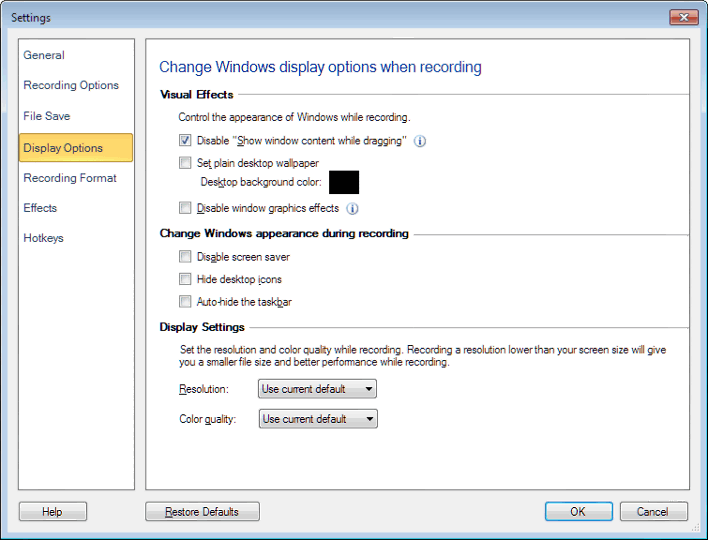
To hide the task bar, click Tools >> Settings >> Display Options. Under 'Change Windows appearance during recording' section, select 'Auto-hide the taskbar' option.
This also works with scheduled recording. Add a schedule to record full screen. When the schedule runs, your screen will be recorded and the task bar will be hidden.