
Changing the duration for daily motion detection recording
-
I have an IP camera set for motion capture and I want to change the number of hours for daily motion detection monitoring. How to do this in Security Monitor Pro?
-
In Security Monitor Pro you can easily set the number of hours to run the motion detection monitoring. You have to add a Daily schedule to perform monitoring for required time.
Follow the steps to create a daily schedule :
-
Add your IP camera and select actions to perform on the Actions tab. If you have an IP camera added, then go to Edit Camera >> Actions tab and select the actions.
-
To configure a schedule, click on the Scheduler icon from the toolbar.
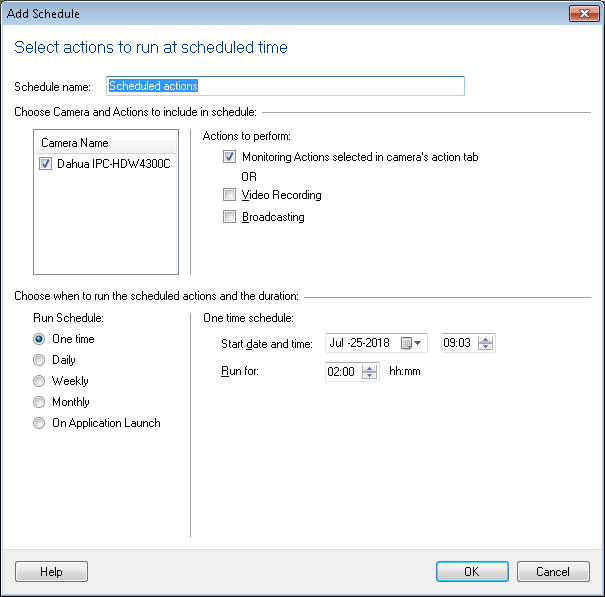
- By default Monitoring actions option is selected. Choose the schedule type as Daily.
-
Select the date and time to start motion detection monitoring. Enter the number of hours to monitor and set Repeat after every 7 days. Click Ok button to save the settings.
For example: If you have to run the daily schedule on every Sunday from [15-Nov-15], then select the corresponding date, time say 12:00, Run for say 4:00 hours and Repeat after every 7 days. -
Similarly, add a schedule for each day of the week with a different start time and number of hours to run the schedule.
The schedule will run for the specified number of hours and motion detection monitoring will be performed.
-