
deskshare logo
Products
Download
Support
Support Forum

Ask questions and find solutions to common problems.


Technical Support

Your complete reference to product technical support.


Lost License Key

Retrieve your purchase history using our automated system.

Resources
Articles

Read expert insights on how to get the most out of our software.


Video Tutorials and Manuals

Learn new features and functions with our easy to follow videos and guides.

Contact Us
Contact Us

Your direct line to chat with us.


About Deskshare

Discover our story and values

| My Account -->
    Deskshare Support Forums
    • Recent
    • Popular
    • Login

    Scheduling Text Speaker to read a file

    Scheduled Pinned Locked Moved Text Speaker
    2 Posts 2 Posters 2.3k Views
    Loading More Posts
    • Oldest to Newest
    • Newest to Oldest
    • Most Votes
    Reply
    • Reply as topic
    Log in to reply
    This topic has been deleted. Only users with topic management privileges can see it.
    • K Offline
      kiuz1970
      last edited by

      I want to use Text Speaker to read a file at a specific time of the day. Can I do this?

      1 Reply Last reply Reply Quote 0
      • D Offline
        DeskShare_-_Support
        last edited by

        Text Speaker can read a document at a specified time using the Talking Reminders feature.

        To schedule a reminder, click on the Talking Reminders icon on the tool bar. Next, click the Create button and enter a start date and time. You can repeat the schedule every ‘N’ days. Choose the ‘Text File Containing Message’ option and click the add file icon to select a file. Click the Ok button to save the reminder.
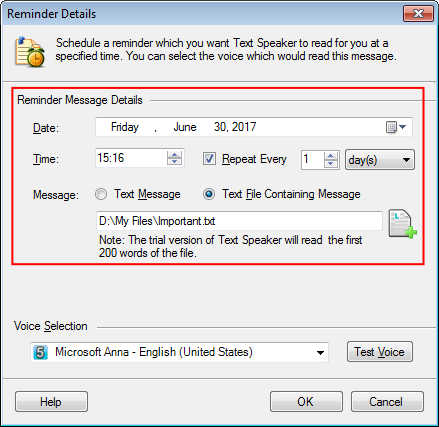
        Once configured, a reminder will appear the specified time and the selected text file will be narrated. You will be able to get the reminder even if Text Speaker is not running.

        1 Reply Last reply Reply Quote 0
        • 1 / 1
        • First post
          Last post