
Display mouse clicks in different shapes and colors while recording screen
-
When I click the mouse I would like the click to be displayed in red with a square shape. How can I configure this?
-
You can change the appearance of your mouse click from the settings in My Screen Recorder Pro.
Start by clicking the Settings icon from the toolbar. On the Effects tab, go to the Mouse Movement Effects section and click the Mouse Effects button. Choose the Square shape to from the Mouse highlight shape dropdown list.
There are two options for mouse clicks - Highlight Left mouse click and Highlight right mouse click. You can select a color by clicking on the rectangle for the 'Color' field. You can also adjust the size of your square shape.
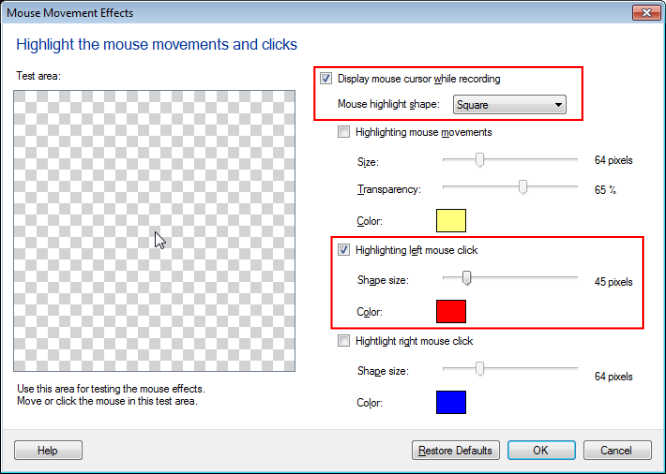
Start recording the screen. When your recording is complete, you will be able to see the mouse clicks highlighted in a square shape in red when playing the recorded file.
Note: The mouse effects will appear when you play back your recording. They will not appear while you are creating the recording.