
Adding a date and time stamp in screen recordings
-
I am using My Screen Recorder Pro to record a single application window. Since I am not recording the full screen, the date and time in the bottom right corner of the screen is not visible. Is it possible to add a date and time stamp on the screen recording?
-
Yes, My Screen Recorder Pro has several different stamp types that can be placed on the screen recording.
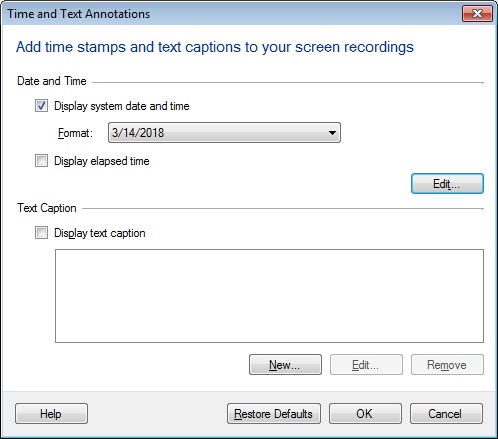
In order to add the date and time label, go to the Effects menu and select the ‘Time and Text Annotations’ option.
Select the check box for ‘Display system date and time’ under the ‘Date and Time’ section. You can then choose the date/time format to be displayed on the screen recording. Other options include adjusting the background color, the position and the transparency. Finally click on the OK button to apply the changes.
Create your next screen recording, and the date/time label will be shown on the recording.
-
Yes, My Screen Recorder Pro has several different stamp types that can be placed on the screen recording.
In order to add the date and time label, go to the Effects menu and select the ‘Time and Text Annotations’ option.
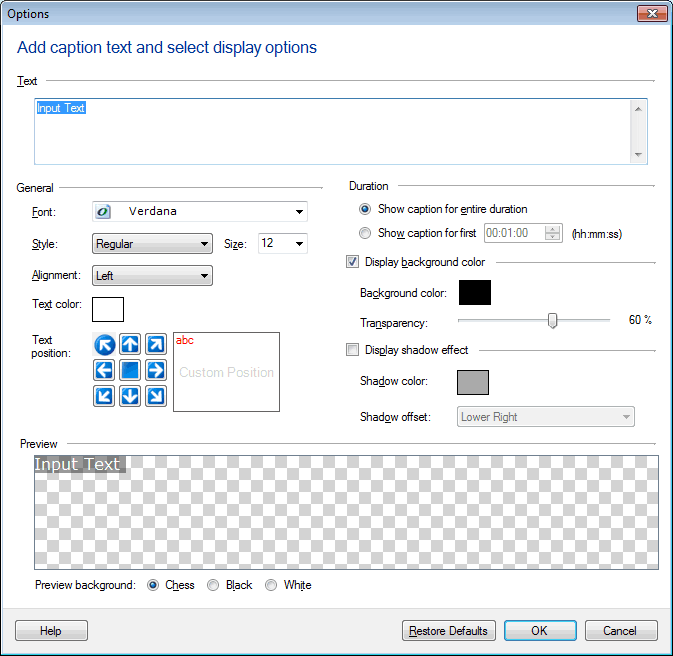
Select the check box for ‘Display system date and time’ under the ‘Date and Time’ section. You can then choose the date/time format to be displayed on the screen recording. Then click Edit to add text and display options.
It is also possible to adjust the background color, the position and the transparency for the label. Finally click on the OK button to apply the changes.
Start creating the screen recordings. The date/time label will be shown on the recordings.