
Make a screen recording with frames captured every 5 seconds
-
I want to record my PC screen with My Screen Recorder Pro, but I don't need to record continuously, I want to capture frames every 5 seconds. Can I record the frames at a specified time interval?
-
Use the Time Lapse recording feature in My Screen Recorder Pro to record frames at a specified time interval.
To configure settings for Time-Lapse recording, click the Settings icon from the toolbar. On the Recording tab, select Advanced Screen Recording Options. Choose Time-Lapse recording and set the time interval value in seconds to 5. You can also set the playback speed of the video.
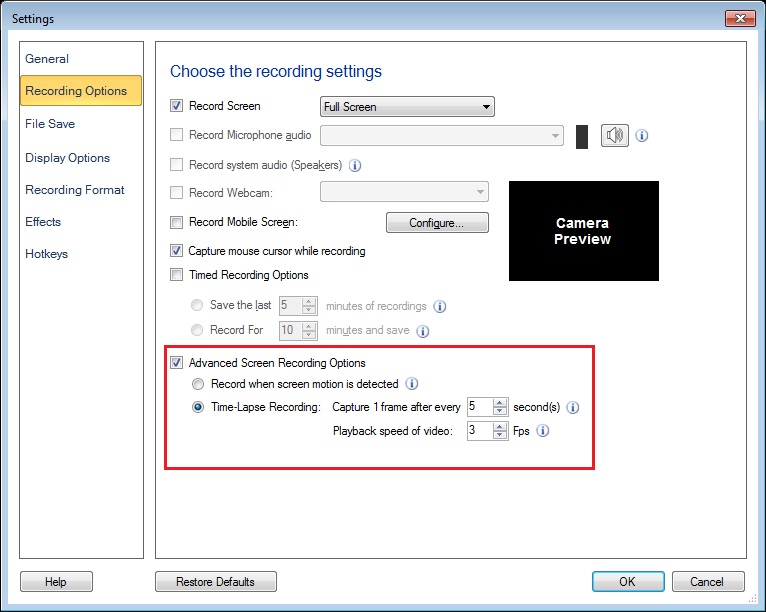
Next, click the Record icon on the toolbar to start screen recording.
When recording starts, one frame will be captured every 5 seconds. When you playback the recorded file, the time appears to be moving faster.Note: Audio capturing is disabled during time-lapse recording.