
Automatically start recording camera after computer reboots
-
I like Security Monitor Pro and would like to purchase it. I have just one question: whether the software can automatically start recording after a computer reboot. Is there any setting for this?
-
Security Monitor Pro can automatically restart actions such as Monitoring, Video recording, or Broadcasting on a PC reboot.
There are two ways to restart actions:
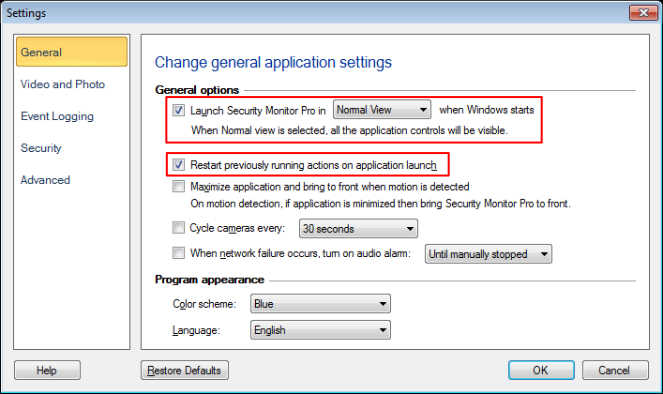
- Restart the previously running actions on application launch.
If the recording action was running and you closed the application, then on the next application launch the recording action will start automatically.
To configure this settings, click on the Settings icon from the toolbar. On the General tab, select the option Launch Security Monitor Pro when Windows starts. The checkbox to Restart previously running action on application launch is selected by default.
- Use the scheduler to start video recording.
If recording was stopped previously, and the PC reboots, you can set a schedule to start recording.
To set a schedule, click on the Scheduler icon from the toolbar. Select the Video recording option from the Actions to perform section and choose On Application Launch as the schedule type.
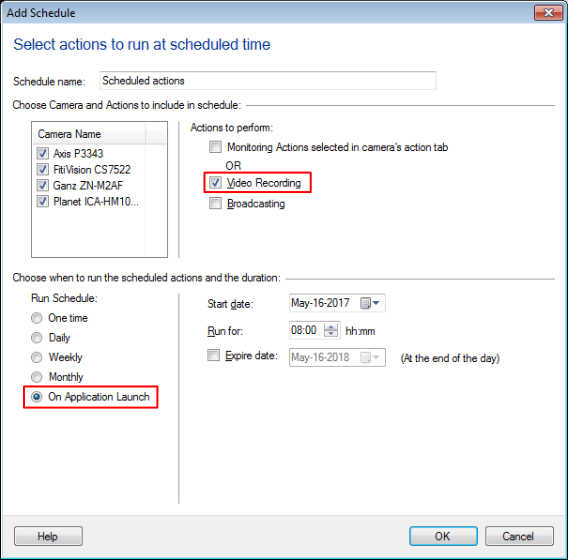
When you make the above two settings, Security Monitor Pro will be launched and Video recording will be performed on PC restart.
- Restart the previously running actions on application launch.