
Recording an application window moved across the screen
-
I would like to record an application and move the applications window to the other side of the PC screen. Can the recorded region be moved in My Screen Recorder?
-
My Screen Recorder can record the full screen or a region. You have to perform the region recording, and use the mouse to move the selected region anywhere on the screen.
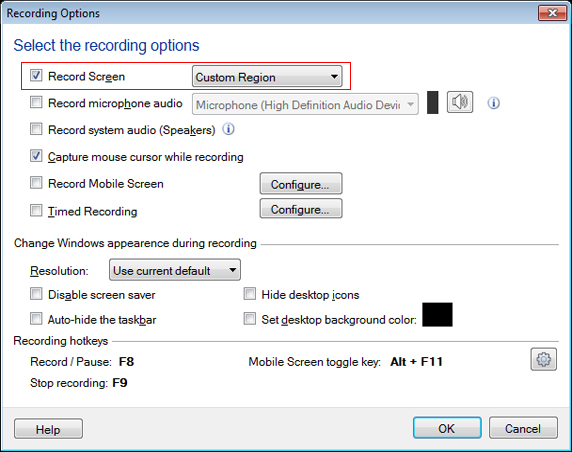
Click on the 'Record' icon on the toolbar and select the ‘Custom Region’ option from the drop-down list. When you click on the Ok button, the mouse pointer will change to a crosshair. Select the window to record by dragging the crosshair over the region.
As you record, a flashing green border shows the area that is being captured. If you need to move the application window, pause your recording, use the mouse to move the recorded region and the application window to a different part of the screen. You can restart the recording when both are in position.