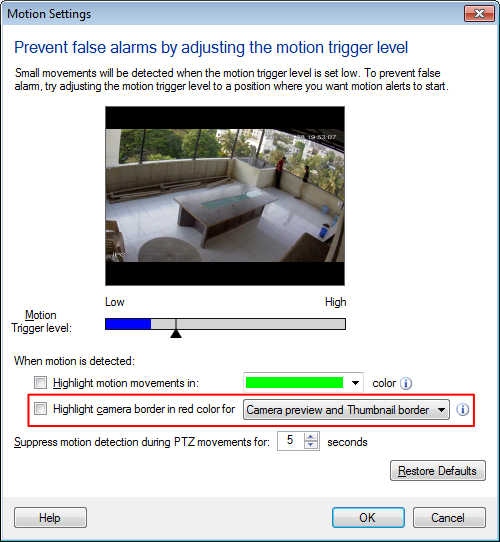
Disabling the red border highlight on the camera preview window
-
I am new user of Security Monitor Pro. I have set up two IP cameras for video recording on motion detection. I want to remove the red color border shown around the camera preview window. What is it for? Is it necessary to keep the red border?
-
In Security Monitor Pro, the red border indicates that there is motion detected on the camera. This will help to easily find which camera has detected motion if there are multiple cameras previewing.
To prevent highlighting of camera, click Manage cameras >> Select Camera >> Edit Camera.
On Actions tab, click on Motion settings button and uncheck the 'Highlight camera border in red color' option.Now, when motion is detected, the camera preview window will not be highlighted in red color.